
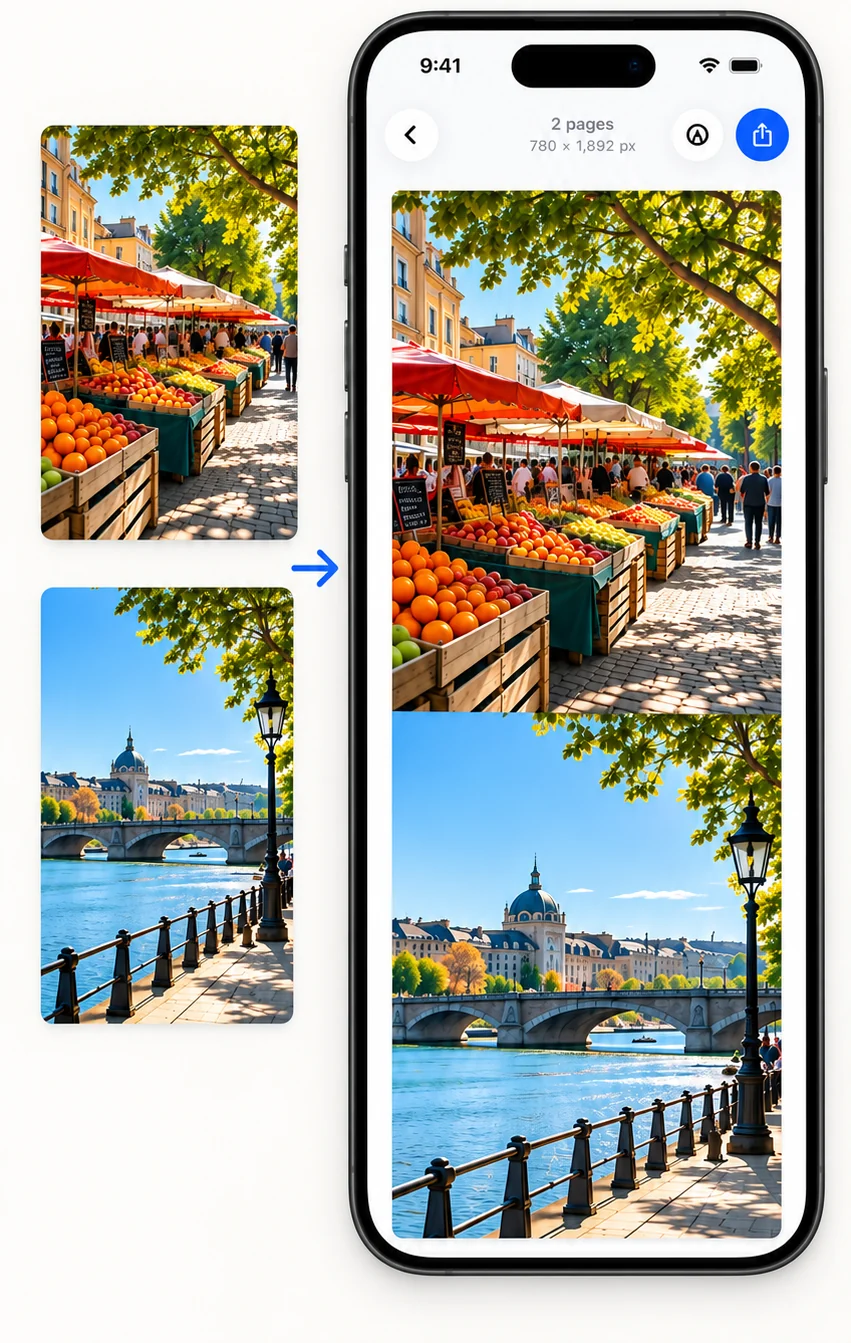
How to stitch photos into one long image on iPhone or iPad
- Open FullPage and tap PhotosPick two or more pictures from your library.
- Let it join themPictures that overlap are matched; others are joined edge to edge and you are told.
- Reorder and adjustDrag to reorder, and tap a join to adjust or cut.
- Crop and saveCrop the result or cut out a part, then save as PNG, JPG or PDF.
Is this a collage maker?
No. FullPage makes one long vertical image. It is not a collage maker or a panorama stitcher. If you want one long image from photos or screenshots, it is the right tool.
What does Pro add for photos?
Pro adds side-by-side and grid layouts with coloured spacing and borders, and removes the limit of 10 pictures per stitch.
Frequently asked questions
How do I combine photos into one image on iPhone?
Pick them in FullPage with Photos. It joins them into one long image that you can save.
Can I merge photos side by side?
Yes, with Pro, which adds side-by-side and grid layouts.
Is this a collage maker or a panorama stitcher?
No. FullPage creates long vertical images from screenshots and photos.
Last updated .